Our latest demos feature Elementor-built footers, making customization as simple as editing any other page. By utilizing the Header Footer Builder, you gain complete control over your site’s footer design and content.
How to Quickly Access and Customize Your Site Footer
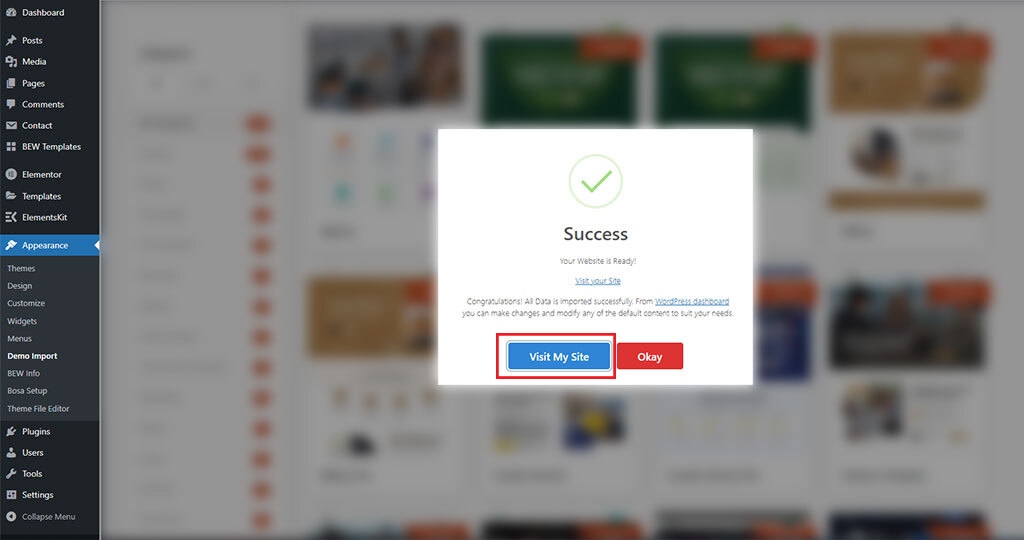
Once the demo import process is completed successfully, a success dialog box will be displayed. Click on Visit My Site to view the imported demo on your website.
To learn How to Import the Demo, please visit this detailed guide.
Once the preview page loads, follow these steps to customize your header:
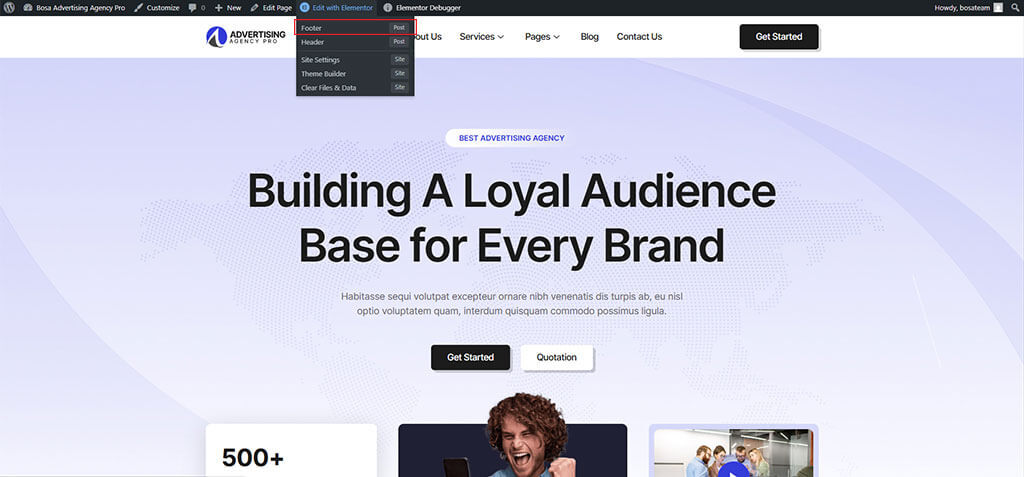
- Hover over the Edit with Elementor menu in the top admin bar.
- Select Footer from the dropdown list to modify the layout and design.
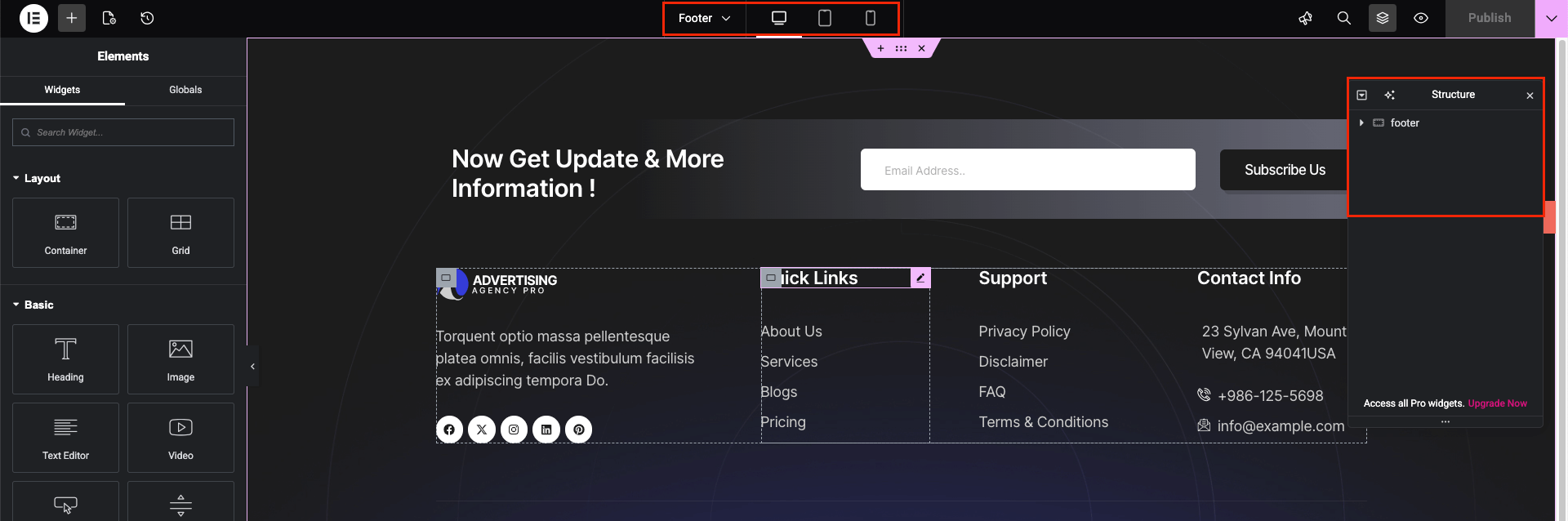
How to Set Up and Customize Footers from the Admin Dashboard
If you want to add a new footer or modify your current layout via the WordPress dashboard, use the following steps:
- Navigate to Dashboard > ElementsKit and follow the setup process.
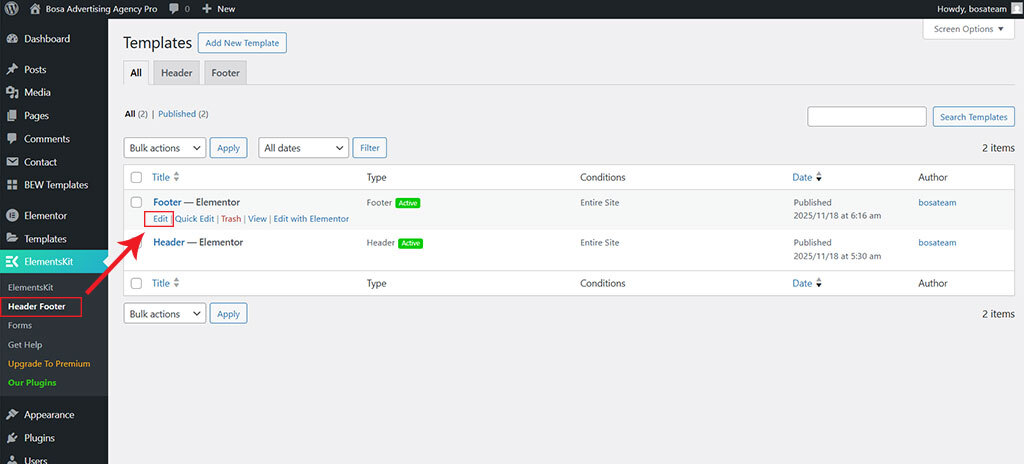
- Once the setup is complete, go to Dashboard > ElementsKit > Header Footer.
- Here, you will find the pre-defined Header and Footer pages.
- To edit the Footer, hover over it and click on Edit with Elementor.
- This will redirect you to the Footer section, where you can customize it as needed.
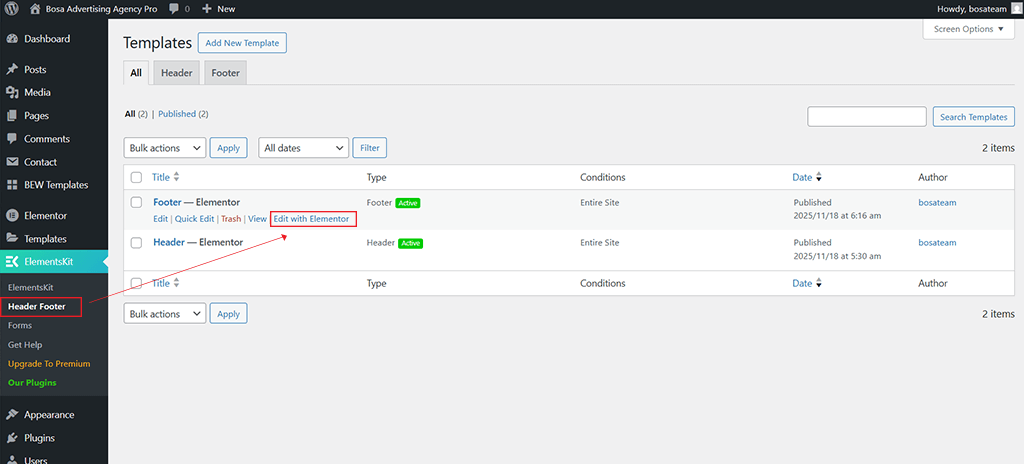
How to select Footer for the Site
- Go to Dashboard > ElementsKit > Header/Footer.
- Hover over the footer and Click on the Edit.
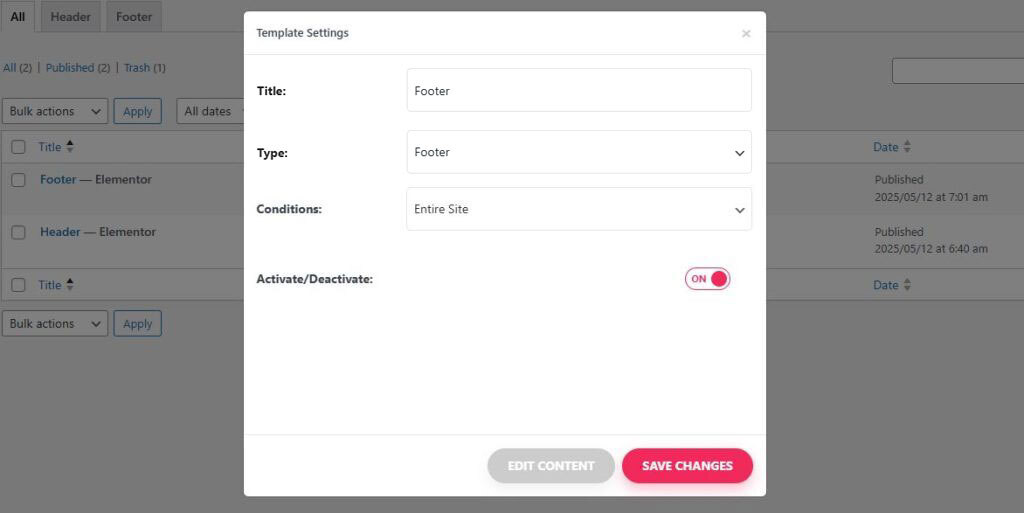
- Then It will popup Template Settings , you can find the different options.
- Title : Change the name of the footer page.
- Type : Set it as footer.
- Conditions : In which page to set.
- Activate / Deactivate
- Then Save Change.